PRODUCT UPDATE · QUICK GUIDE
CONNECT · 01 / 08
Connect the Product Update USB drive supplied by VirTra to the server of the simulator you want to update.
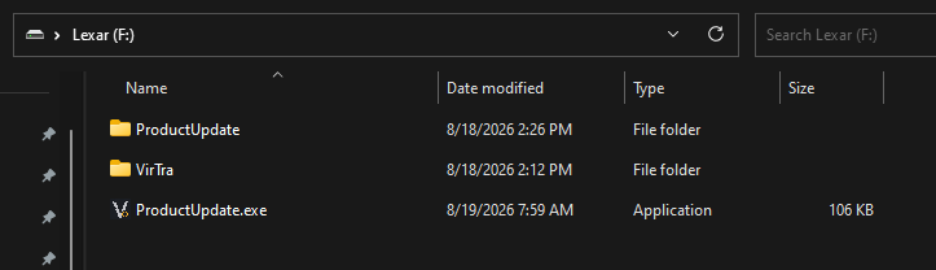
Open the drive in File Explorer.
LAUNCH · 02 / 08
Find ProductUpdate.exe on the USB drive and double-click it.
On the welcome screen, select Next to open System Preparation Diagnostics.
PREPARE · 03 / 08
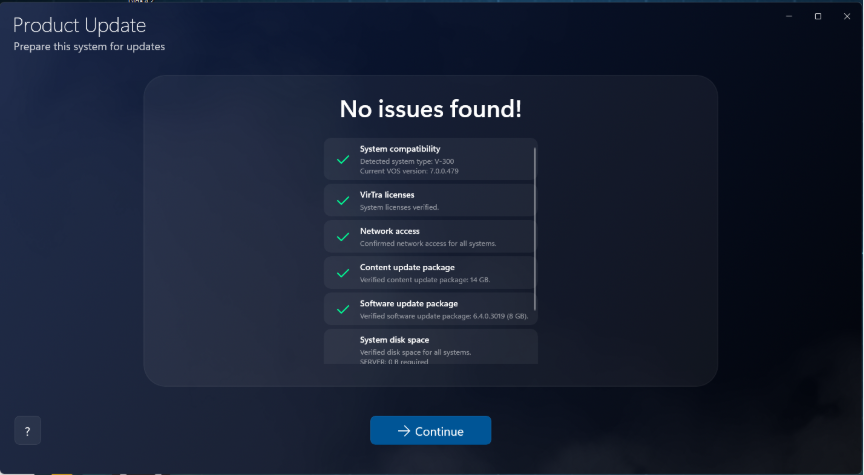
Review the diagnostic results. If no issues are found, select Continue.
If an issue prevents you from continuing, use the app’s support resources or contact VirTra Service.
UPDATE · 04 / 08
Select Start Updates to begin the sync process.
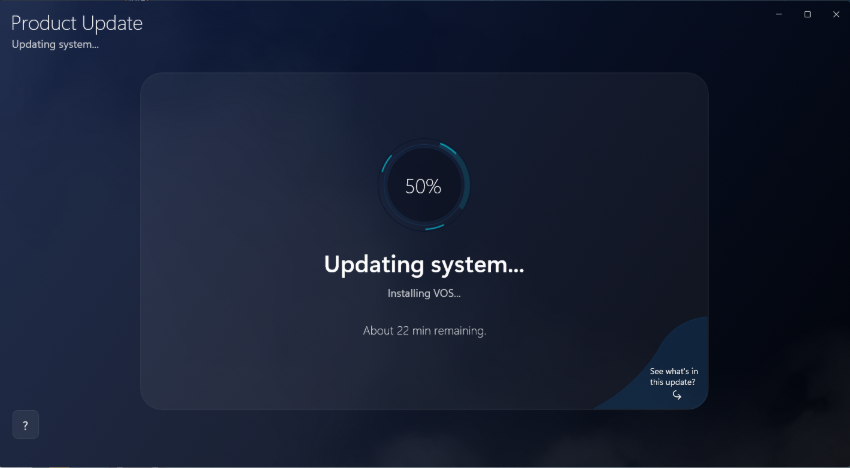
The app displays a progress percentage and an estimated time remaining while it updates your simulator.
EXPLORE · OPTIONAL · 05 / 08
Before restarting, select See what’s in this Update to explore the software and content changes included with your drive.
Select More information to preview the available updated content.
EXPLORE · OPTIONAL · 06 / 08
Browse the content included in the update package. Use the content search and filter to find an item, then select it to preview its details.
The available content reflects the package prepared for your update drive.
FINISH · 07 / 08
When the sync process finishes, accept the completion prompt and restart the system.
Use the restart control shown by your version of Product Update. The example screen labels it Restart system.
SUPPORT · 08 / 08
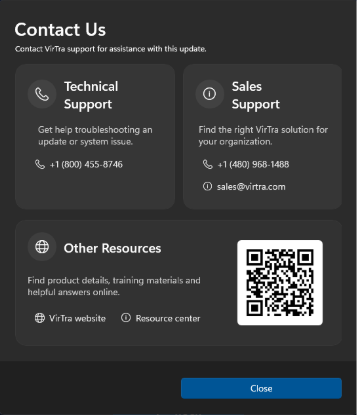
Select the ? support button in the lower-left corner of Product Update to access its support resources.
VirTra Service Department
[email protected]
480-508-5977
Use the arrows or swipe to move through the guide.